

Overview
This guide walks you through integrating Sticker into your platform. The entire process takes approximately 2-4 hours and requires implementing two API endpoints.Prerequisites
Before you begin, make sure you have:API Credentials
API Credentials
- Partner API Key (provided by Sticker team)
- Partner ID (UUID provided by Sticker team)
Development Environment
Development Environment
- Backend server capable of making HTTPS requests
- Frontend capable of rendering iframes
- HTTPS enabled (required for production)
Integration Steps
1
Get Your API Credentials
Contact the Sticker team to receive your:
- Partner ID (UUID)
- Partner API Key (starts with
sk_live_orsk_test_) - API Base URL
2
Implement Organization Setup
When a customer enables the supplies module, call the organization setup endpoint to provision their account.Endpoint:
POST /v1/organizations/setupThe
internalOrgId and internalUserId are your internal identifiers. internalOrgId maps to the business organization; internalUserId maps to the employee/user profile.3
Implement User Handshake
Every time a user opens the supplies module, call the handshake endpoint to authenticate them.Endpoint:
POST /v1/partner/handshake4
Embed the iframe
Use the returned
iframe_embed_url or construct your own URL with the session_key:5
Test Your Integration
Use the sandbox environment to test before going live.
Test Checklist
Test Checklist
- Organization setup creates profile correctly
- Handshake returns valid session tokens
- iframe loads and displays products
- User can add items to cart
- Checkout process completes successfully
- User can view order history
Code Examples
Choose your preferred language/framework:What the Embedded Experience Looks Like
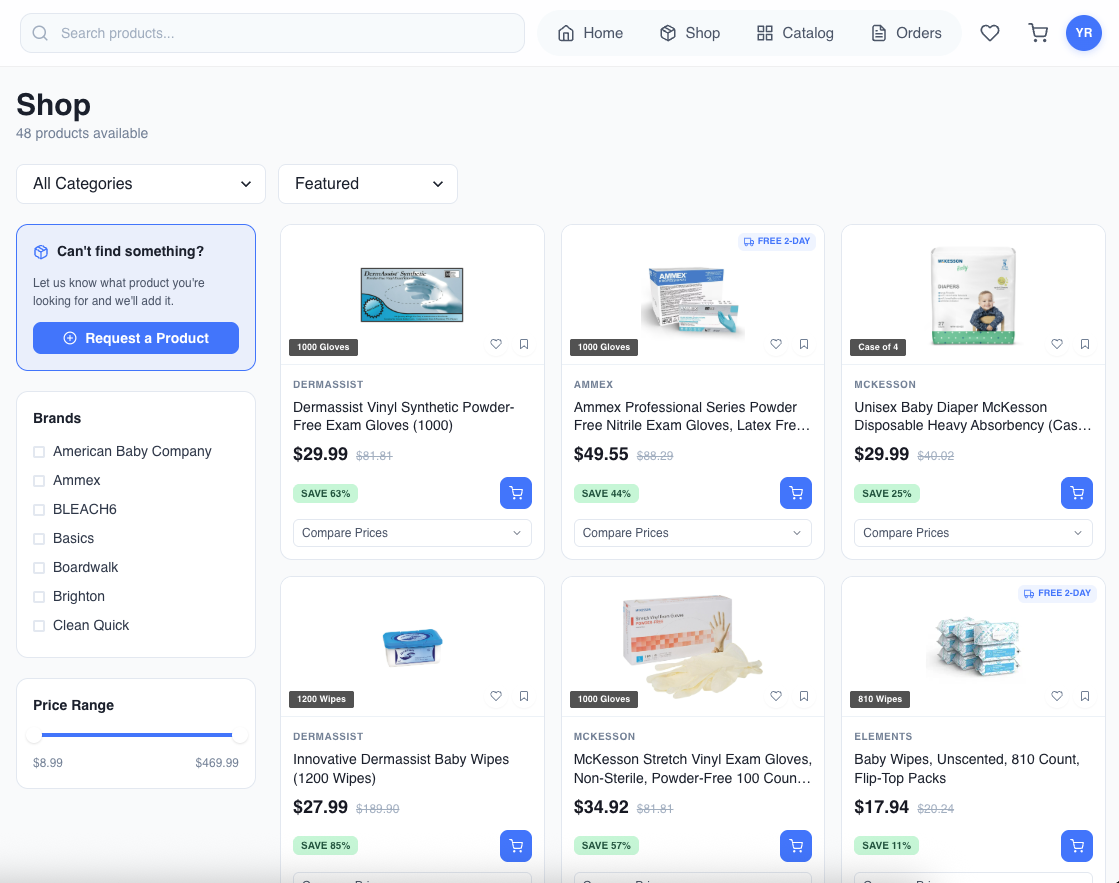
Browse products with search, filters, and categories
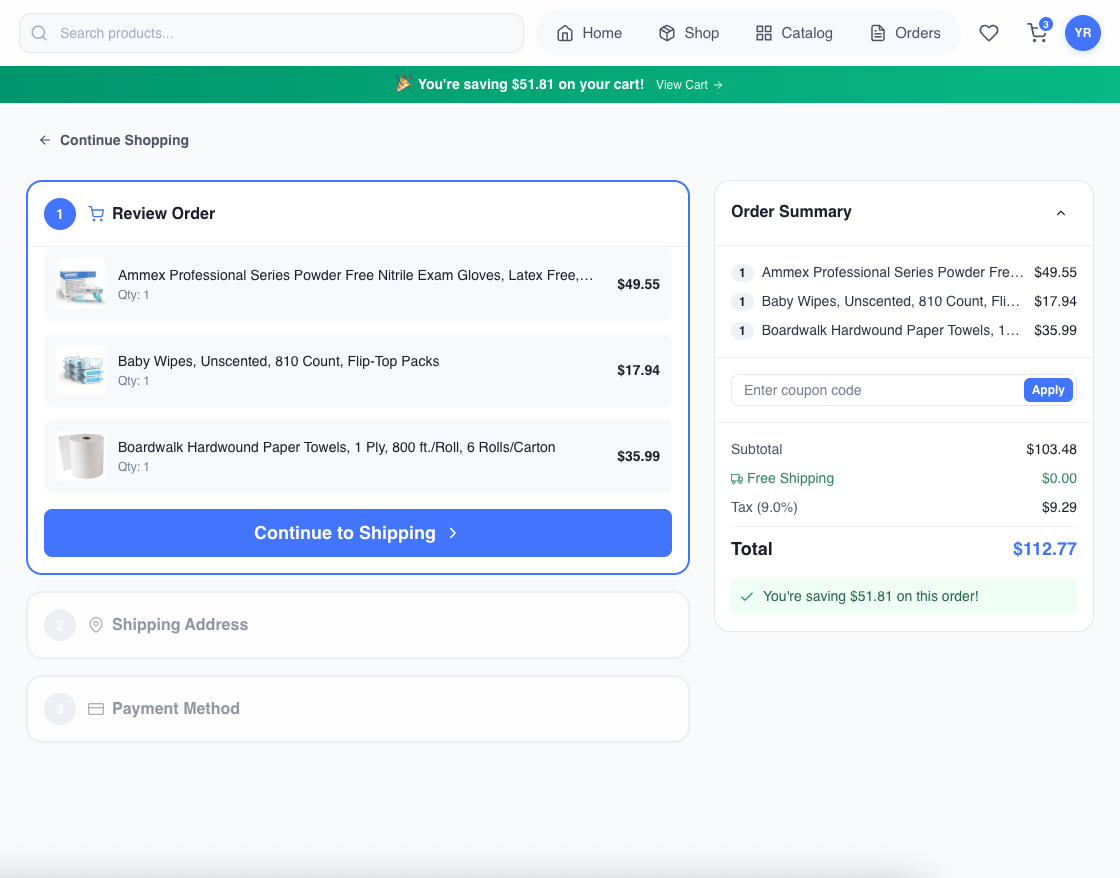
Seamless cart and checkout experience
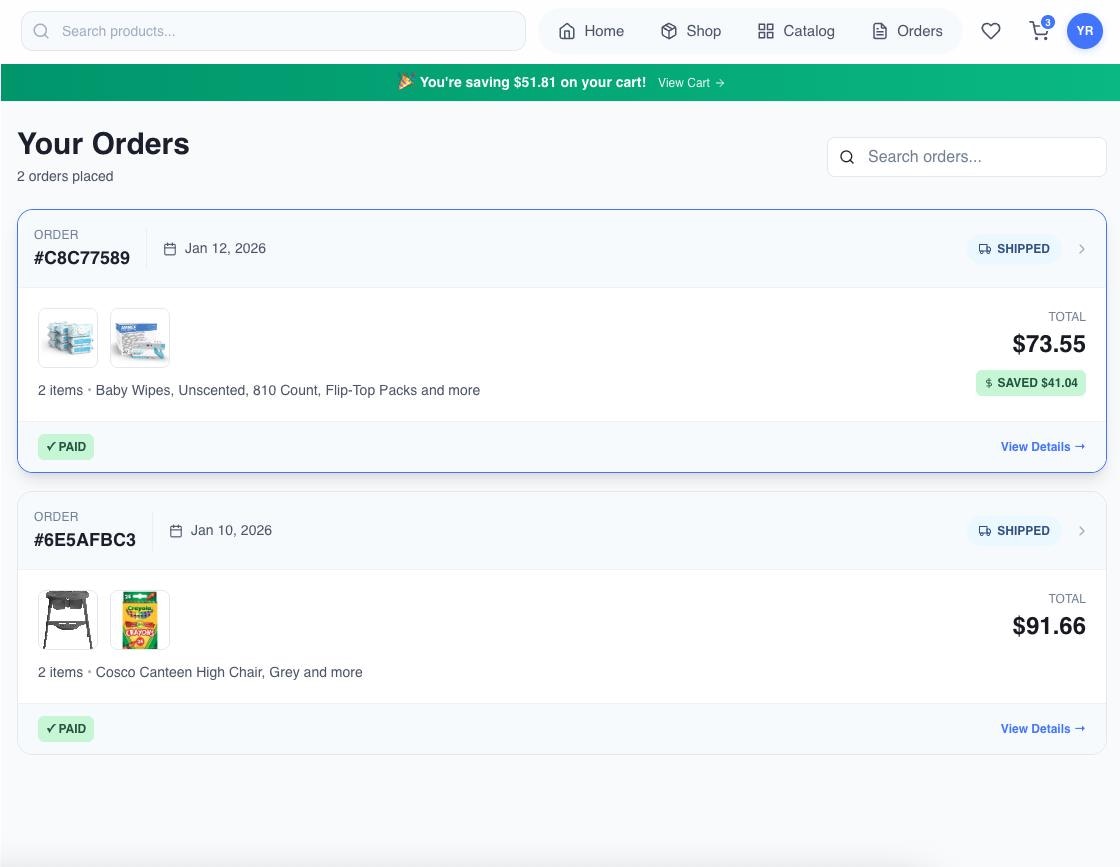
Full order history and tracking
Next Steps
Organization Setup
Complete API reference for provisioning organizations
User Handshake
Complete API reference for session authentication
iframe Embedding
Best practices for embedding the iframe in your app
Security
Security considerations and best practices
Getting Help
Need assistance? Our team is available to help you with your integration:
- Email: suyash@usesticker.com
- Schedule a call: calendly.com/usesticker/meeting